Background
On Monday you wrote a tangled web of spaghetti code. Today, you’re going to reorganize the code without changing the functionality. That process, keeping outputs the same while cleaning the code, is called refactoring and it’s an essential step in creating, maintaining, and sharing workflows.
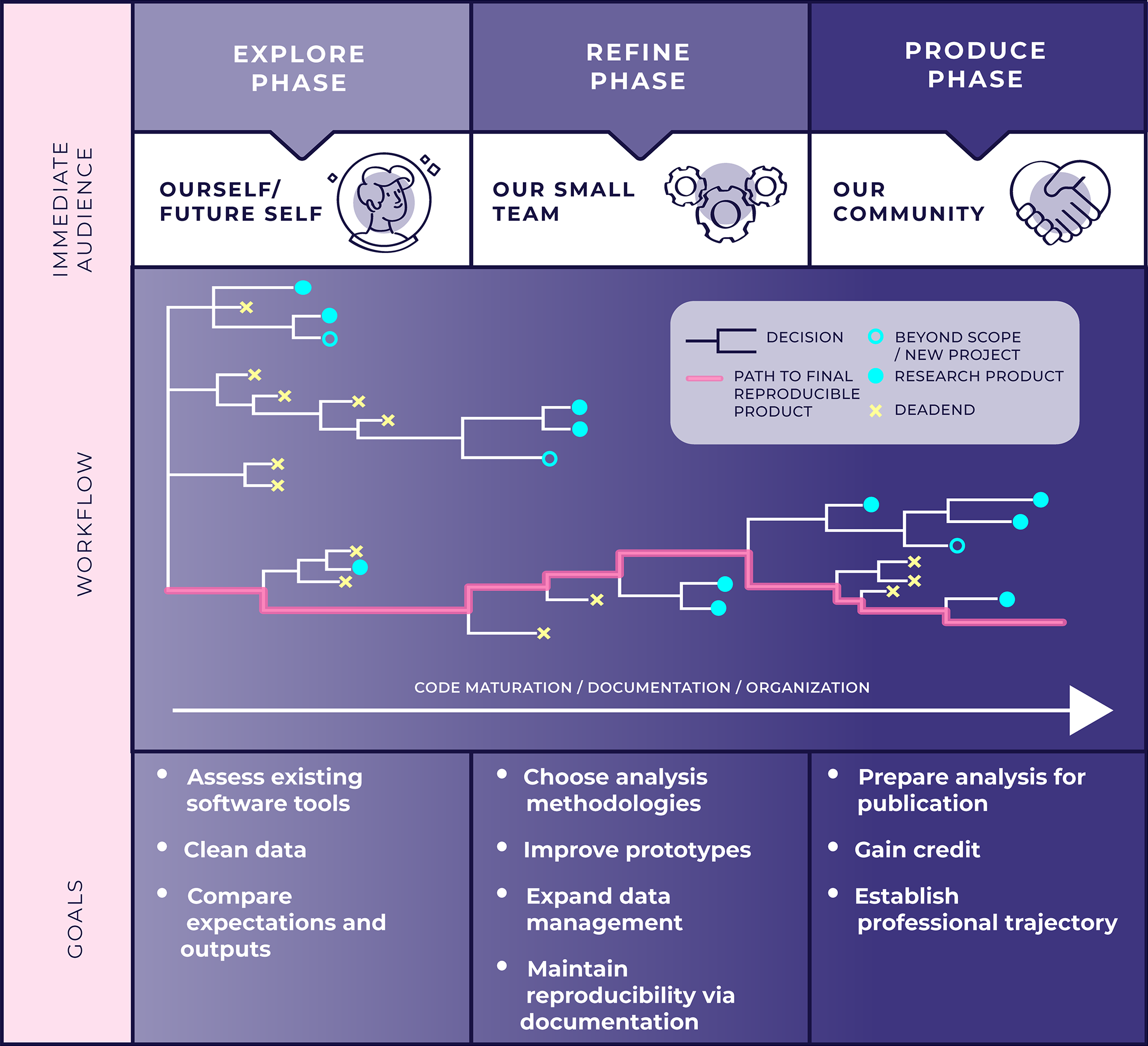
In most analyses, you won’t know exactly what you need to do fully in advance. Which means your initial implementation is going to be exploratory. Recall the figure below from Day 1 (Stoudt, Vásquez, and Martinez 2021). As you draft your code, you’ll hit dead ends or pivot to new solutions. These dead ends yield confusing code that’s hard to read and build upon. This problem is inevitable! Refactoring is the solution.
One good way to refactor your code is to write a function to perform a task. Writing a function provides several immediate benefits:
- The function name (if chosen wisely) describes the task clearly and succinctly, which several lines of code may not do.
- A function separates the internal logic of the task (the function body) from the purpose it serves in your analysis (a script). That helps you focus your attention on one at a time, instead of mentally juggling both.
- If you end up doing that task multiple times, you can reuse and maintain one function more easily than copy-paste-editing the same chunk multiple times (it’s also less error-prone).
Goals
In this session, you’re going to take the moving average task in your spaghetti code and refactor it into a function. As you do so, you’ll learn how to apply two GitHub project management tools we covered in lecture: Issues and Pull Requests.
Instructions
Identify the code for the task
Find the code in your spaghetti script where you process the stream chemistry data with the moving average. Make a note of the line numbers.
Open a GitHub Issue in your repo (instructions here). Make the title “Refactor moving average code”. Link to the lines of code in your spaghetti script in the body of the Issue. Tag your instructors (@FlukeAndFeather and @avidalmeza) in the body of the Issue.
Tag your instructors in the body of the Issue, not the title.
Write your function
Function definitions go in scripts in the R/ directory. This is a common convention for organizing R projects.
Before proceeding, create a branch and switch to it.
Create a script in the R/ directory. Call it moving-average.R. Below, I’ve given you the outline of the function for the moving average. Fill it in to complete the function.
# The input to this function should be a data frame containing stream chemistry data
moving_average <- function(____) {
  # Initialize a tibble to contain the results
  result <- tibble(
    window_start = seq(____, ____, by = _____),
    k_mgl = NA,
    mg_mgl = NA,
    # Fill in the rest of the ions
  )

  # Fill in the iterator and sequence
  for (___ in ___) {
    # Create variables for the start and end of the current window
    w1 <- ___
    w2 <- ___

    # Create a logical vector, called "in_window", that says which samples are inside the window
    # Hint: you'll compare sample dates to the start and end of the window
    in_window <- ___

    # Use indexing to pull out the ion concentrations that fall inside the window
    k_window <- ___$___[___]
    # The line above gets potassium in the window. Get the rest of the ions too

    # Calculate the mean of each ion concentration and fill in the result
    result$k_mgl[___] <- mean(___)
  }

  # Return the result
}
Refactor your spaghetti
You’ve defined your function, now it’s time to use it.
- At the beginning of your analysis script (the spaghetti), use the
source()function to load your function. If your function is infoo.R, you’d writesource("R/foo.R"). - Replace the code you identified in your Issue with a call to the function.
- Run your analysis script and verify the results. This will probably require some debugging!
Commit your changes and create a pull request
Typically, pull requests occur between forked repos. But they can also be used between branches in the same remote repo. There are fewer moving parts when you stay in a single repo, so that’s what we’ll start with today. You’ll create a fork and pull request tomorrow during peer review.
- Commit your changes. In your commit message, say this commit addresses the Issue you created earlier. If you created Issue #1, your commit message should include “See #1”.
- Push your commit.
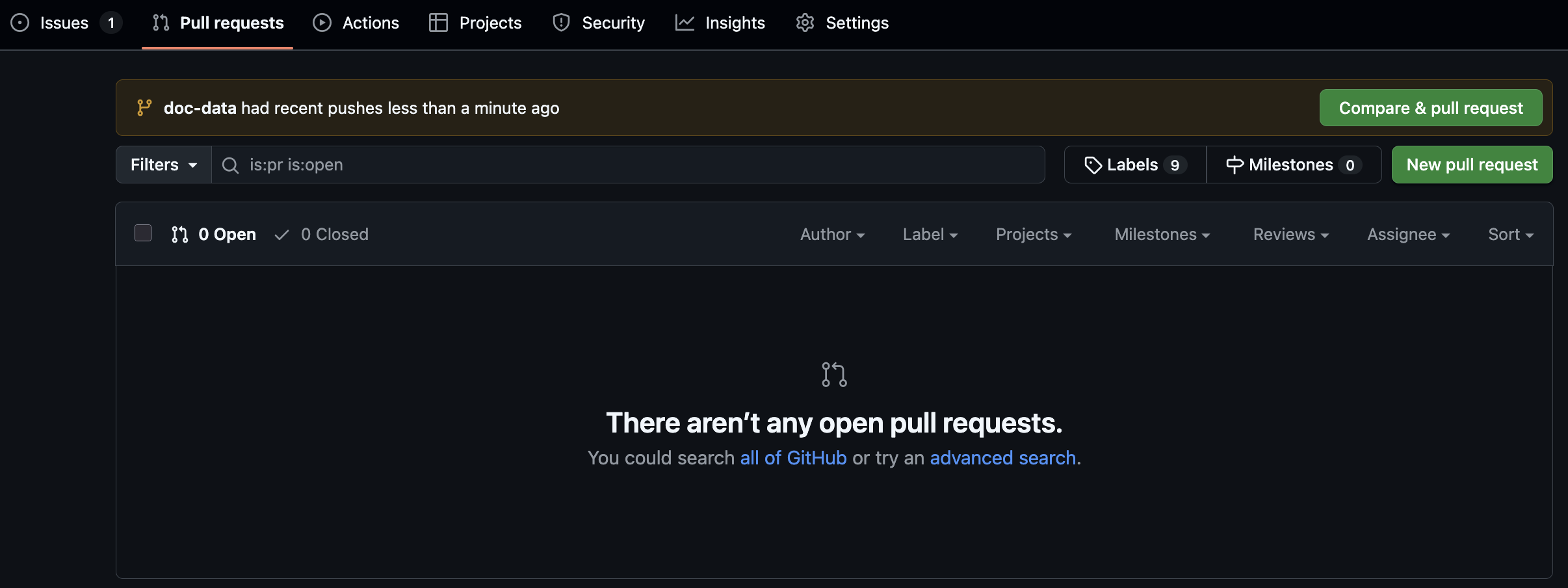
- Navigate to your repo on GitHub. Switch to the Pull requests tab. You should see a yellow notification that one of your branches had a recent push, and a green button saying Compare & pull request. Click on that green button (not New pull request).
You have the option to add a title and description. By default, your title will be the latest commit message. If you wrote something descriptive and succinct, you can keep it. The description should say what your pull request does. The issue you opened earlier should have most of the details, but if you learned something along the way that’s not in the issue then this is the place to include it.
Click on the green Create pull request button.
GitHub will notify you if there are any merge conflicts. Unless you edited your main branch separately, there shouldn’t be any. Click on the green Merge pull request button, then the green Confirm merge button. You should see a purple merge icon and a message saying it’s now safe to delete the branch you made.
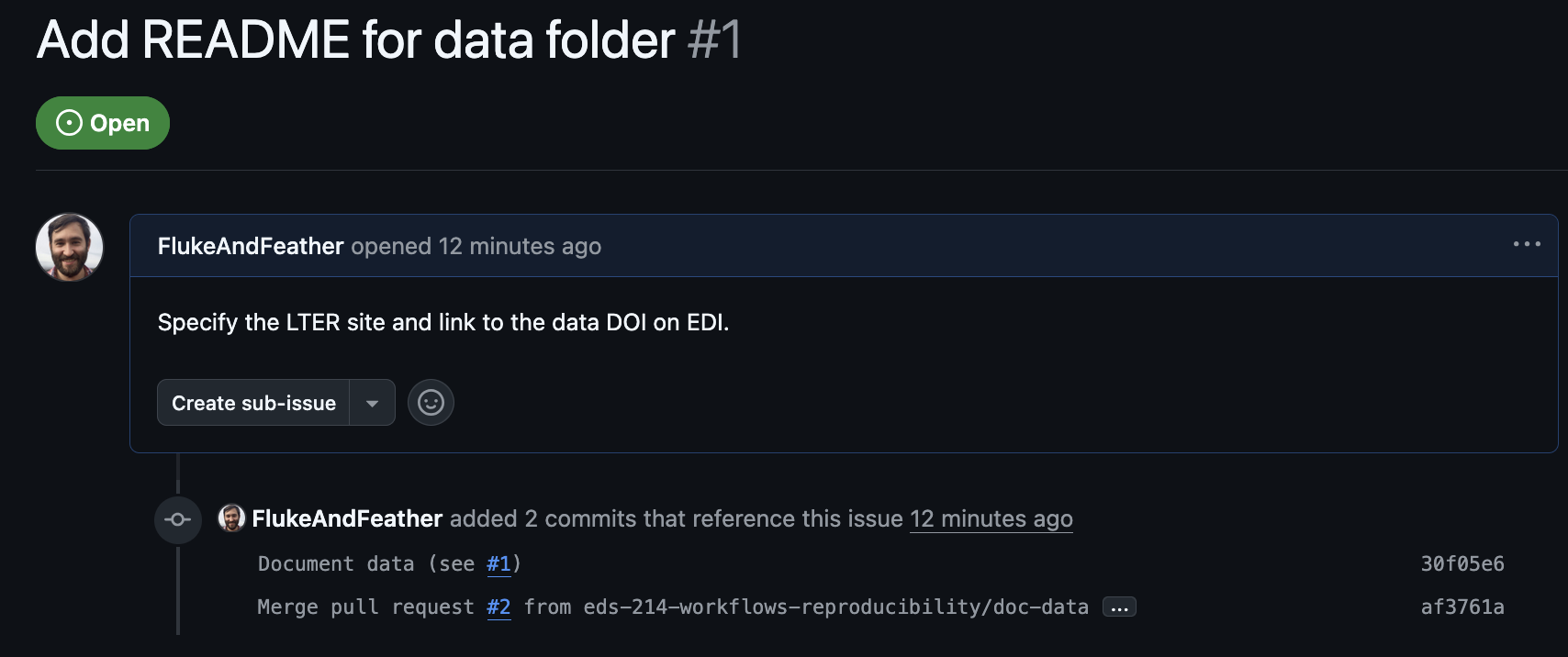
Switch back to the Issue you made earlier. You should now see 2 commits that reference the issue: the commit you made locally and the pull request itself. Close the issue by clicking the Close issue button with the purple check mark next to it.
Recap
In this session you used GitHub’s project management tools (Issues and Pull requests) to make improvements to your repo.
Issues are important for collaboration because:
The Issue describes the problem (e.g., what needs to be refactored).
Collaborators can discuss the solution in the Issue thread.
The discussion can directly link to the relevant lines of code.
You made an internal pull request in your own repo today, which familiarized you with the process. Tomorrow you’ll fork a partner’s repo and create an external pull request.